Even Deeper IQFeed Troubleshooting
By Dave Mabe
As I mentioned recently a couple of times, the IQFeed/Amibroker integration can seem like a black box at first glance.
But there are actually several ways to dig into what's going on.
I've mentioned the Backfill status window and Debug View.
Sometimes, you need to go even deeper.
And that's where the diagnostic tools that come with IQFeed are really handy.
These operate within IQFeed itself, regardless of what client application is accessing the data.
To access these tools, find the IQFeed Connection Manager icon in your taskbar and right-click on it.
Choose the Support option and then select Diagnostics.
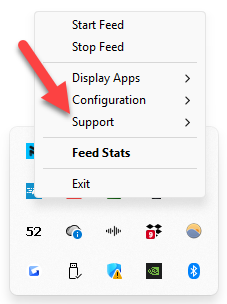
This brings up the IQFeed diagnostics window where you can do various useful things when troubleshooting.
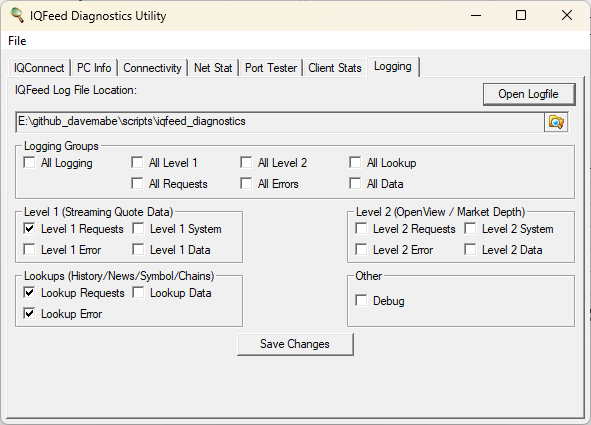
You can configure IQFeed to log all sorts of things:
Level 1 Requests
Lookup Requests (historical requests)
System messages
Data returned for each request type
Nice to have, but be careful: you can quickly consume lots of disk space by logging data.
I quickly created a 51GB file when troubleshooting bad tick data a few weeks ago.
-Dave
P.S. Wish you could backtest your ideas - without spending months learning to code? Get the strategy included in the Amibroker AFL Course Get Instant Access