Deeper Troubleshooting of IQFeed
By Dave Mabe
Pre-S: I'll be on the B The Trader podcast soon. There's a "submit a question" segment where I'll be answering questions from listeners. If you have any questions, submit them here. Thanks!
In yesterday's post, I shared how you can troubleshoot backfill issues with IQFeed and Amibroker.
Today I'll share how you can go deeper with using a tool called Debug View.
DebugView is a very simple, free tool from Microsoft that lets you collect "debug" messages sent from various programs on a Windows machine.
Normally, these debug messages are used by developers to help troubleshoot their own applications.
But the mechanism is a nice way to send messages for various reasons.
Tomasz, the creator of Amibroker, recognized this and provided a nice way for Amibroker to send messages to this interface for low-level debugging purposes.
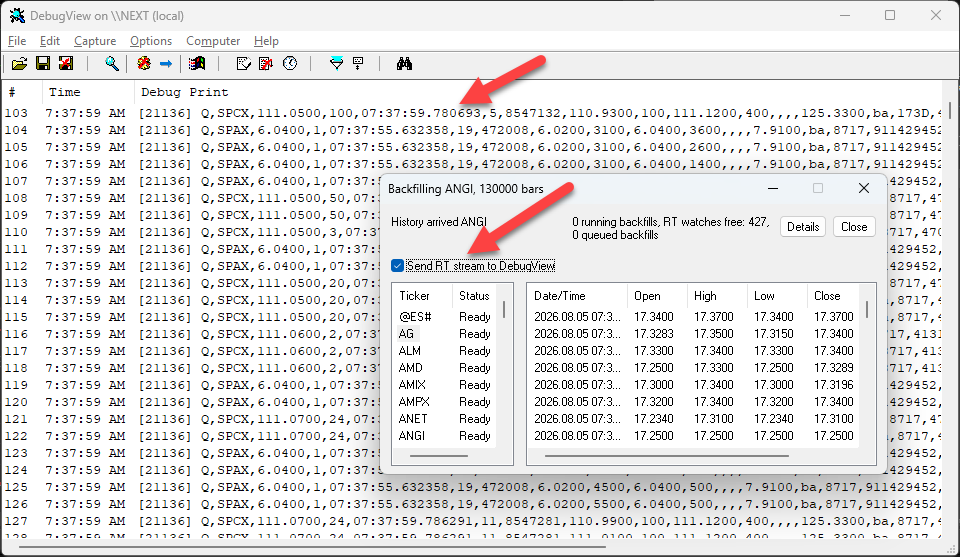
In the backfill status window, there's a checkbox called Send RT stream to DebugView.
If you don't have Debug View installed and running, this checkbox will do nothing.
But if you do have it up and running, you'll see the stream of messages flowing to Debug View, where you can view, save, and even filter the messages.
In the screenshot below, I have Debug View running and I checked the box in the Backfill window.
I can now see the actual trade messages flowing from IQFeed into Amibroker (the first one is a tick in SPCX).
This integration can come in handy for troubleshooting market data.
Sometimes you need to go deeper still - that will be the subject for tomorrow. Stay tuned.
-Dave
P.S. Amibroker users: are you trying to use Claude or ChatGPT to create a backtest only to discover how bad the LLMs are at coding Amibroker's language? You're not alone! You need my Amibroker AFL Course. It comes with a demo strategy that serves as the perfect starting point for any strategy you want to create. Get instant access to the Amibroker AFL Course