IQFeed Backfill Tool by MabeKit
Documentation for the MabeKit IQFeed Backfill Tool for downloading historical bar data from IQFeed and importing it into AmiBroker. See the video below for a demonstration.
Prerequisites
This tool requires IQFeed installed with a valid login, and if you're importing into Amibroker, a recent version of Amibroker installed, preferably AmiBroker 7.0+.
Create an AmiBroker database with the data source set to (local database) and the base time interval set to 1-Minute.
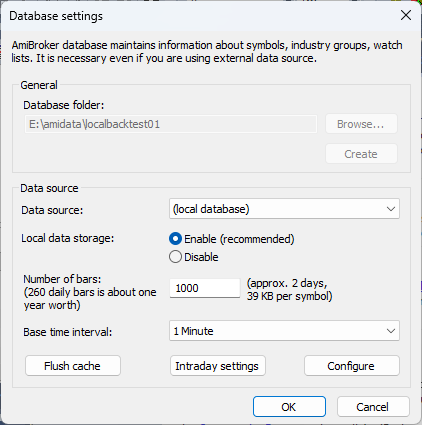
Follow the Symbol List Update Script process and update the symbol list to your local database. This generates the .normal.tls file you will need for the backfill.
Installation
Extract iqfeedbackfill-v1_0_1-dist.zip to a directory on your machine. (I chose e:\amidata\backfilltest)
There are some simple steps in AmiBroker to make this process seamless.
There are two files in the AmibrokerFormats directory in the zip file:
mabekit_intraday.formatmabekit_daily.format
Copy these files to the Formats directory in your AmiBroker installation. Most likely the path is: C:\Program Files\AmiBroker\Formats.
Then open the import.types file in that same Formats directory.
Add these two lines at the bottom:
MabeKit Intraday Import (*.qcolcsv)|*.qcolcsv|mabekit_intraday.format
MabeKit Daily Import (*.qcolcsv)|*.qcolcsv|mabekit_daily.format
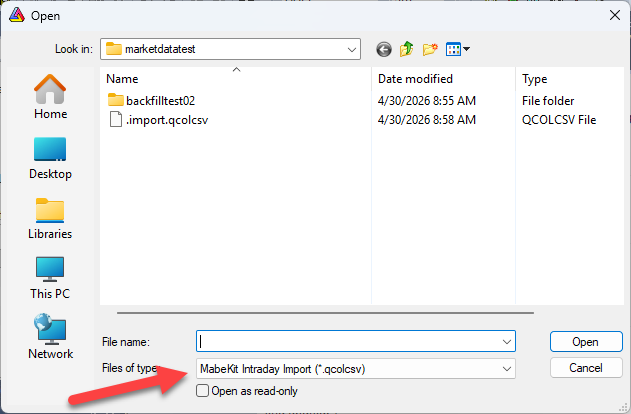
Once this is set up properly, when you go to File -> Import ASCII..., you should see the MabeKit Intraday Import option:
Quick Start
Practice the entire process on a handful of symbols first, since doing the whole backfill before confirmation takes several hours. Follow the steps below to test.
Look at the README.md file in the extracted directory for the full list of options.
Open Windows PowerShell, navigate to the directory where you extracted the tool, and run:
cd e:\amidata\marketdatatest.\iqfeedbackfill.exe --symbols AAPL,MSFT,SPY --barsize 1 --start-date 20250101 --data-dir e:\amidata\marketdatatest\backfilltest
Remember, of course, that your local paths will differ.
This downloads 1-minute bars from January 1, 2025 to today for AAPL, MSFT, and SPY.
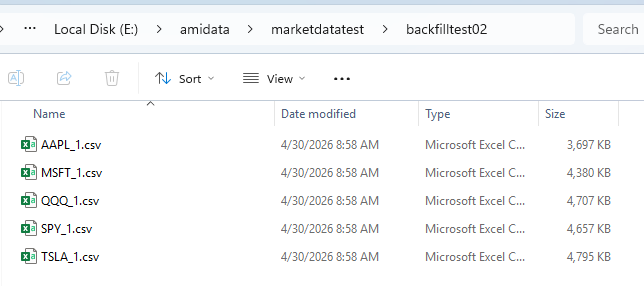
After it completes, you will see per-symbol CSV files in the data directory:
Now, create the single import file. In Windows PowerShell, run:
.\iqfeedbackfill.exe --import --barsize 1 --data-dir e:\amidata\marketdatatest\backfilltest
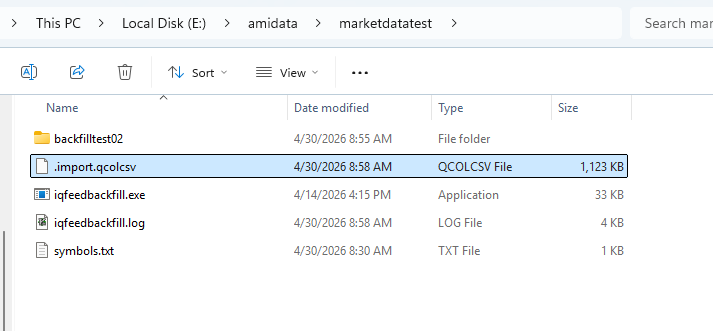
This will create a file called .import.qcolcsv in the current directory:
Import the File Into AmiBroker
Now you should be able to go to AmiBroker and import the file.
Choose File, Import ASCII...
Navigate to the folder where the import file was created.
Choose the MabeKit Intraday Format item from the Files of type field.
Choose .import.qcolcsv from the list and click Open.
Open a chart for one of your test symbols. You should see 1-minute bars starting from your start date.
Full Backfill
Once the test works, run the full backfill with your symbol list. In Windows PowerShell, run:
.\iqfeedbackfill.exe --symbol-file e:\symbol_list_update\.normal.tls --start-date 20160101 --data-dir e:\amidata\marketdatatest\backfilltest
This will take several minutes for the full symbol list.
After it completes, create the import file. In Windows PowerShell, run:
.\iqfeedbackfill.exe --data-dir e:\amidata\marketdatatest\backfilltest --import
Import into AmiBroker the same way as the test above.
Updating Your Data
Re-run the backfill command without --start-date. The tool picks up from where it left off. In Windows PowerShell, run:
.\iqfeedbackfill.exe --symbol-file e:\symbol_list_update\.normal.tls --data-dir e:\amidata\marketdatatest\backfilltest
Then rerun the import into AmiBroker. The import only includes new rows, so it is much faster.
Troubleshooting
"Invalid date format" error
Make sure you selected MabeKit Intraday Format from the Files of type dropdown when importing — not the default format.
No data on chart after import
Check that your database base time interval is 1-Minute and your chart date range covers the imported dates. Check Window, Output for the import log.
Format not showing in import dialog
Make sure the format file is in the Formats folder and restart AmiBroker after editing import.types.