How to Customize Order Fields in IBKR's TWS
By Dave Mabe
The biggest turning point in my trading - bar none - was when I started automating all my trades.
I had good years before that, but nothing like the years after implementing automation.
I see the same pattern with the traders I coach.
But even with implementing automation (like the Trade Client included with MabeKit), you still want to customize your views in the platforms where the trades end up.
The default view in Trader Workstation is missing some important fields, and I'm always surprised to see traders not customizing this view.
Here are the fields I've added to my Orders Grid in Interactive Brokers' TWS:
Submit Time - the time an order was submitted
Start Time - the critical field for Timed Exit orders
End Time - controls how long your entry order is active before automatically canceling if unfilled
OCA Group - a string that groups your exit orders together (OCA = one cancels all)
Order Reference - a string you can customize from the sending application. The Trade Client uses the Strategy Name for this field
Fill Price - the average fill price of that particular order (blank if not filled)
This gives you the perfect view to verify your orders were entered properly and a quick way to adjust them if you need to.
To add fields in Trader Workstation in the Orders Grid, right-click on a header, go to Insert column before, and choose the column you want from the extensive list.
Here's an image I sent to a trader using the MabeKit Trade Client showing how to add the Start Time field:
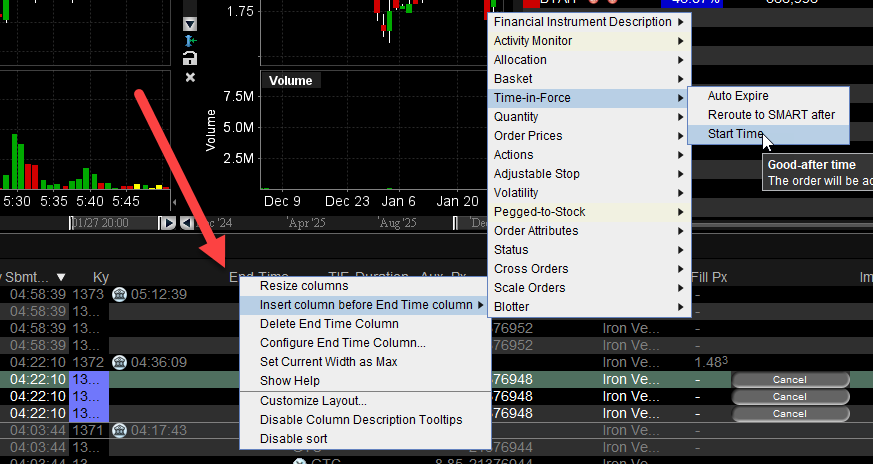 Adding these fields, plus any others convenient for you, will make your Orders grid far more useful and save you a lot of mouse clicks if you have to change an order.
-Dave
P.S. Have you ever made an order entry mistake that cost you money? Imagine never making a costly mistake again. Eliminate your trading mistakes with MabeKit.